

Create and manage broadcast categories
You can organize the broadcasts in a channel by creating categories and assigning a category to a broadcast. Broadcasts will appear grouped by category on your Channel Portal page. You can also manage the order the broadcasts will appear in each category.
- 1
From your Channel Dashboard, click Categories from the far-left menu.
- 2
Click the + Create New button.
- 3
Enter a name for your new category and click the green Create button.

- 1
After creating a new category, your category will appear in a box in the Broadcast Categories section.
- 2
To change the name of your category, click the pencil icon next to the category name.
- 3
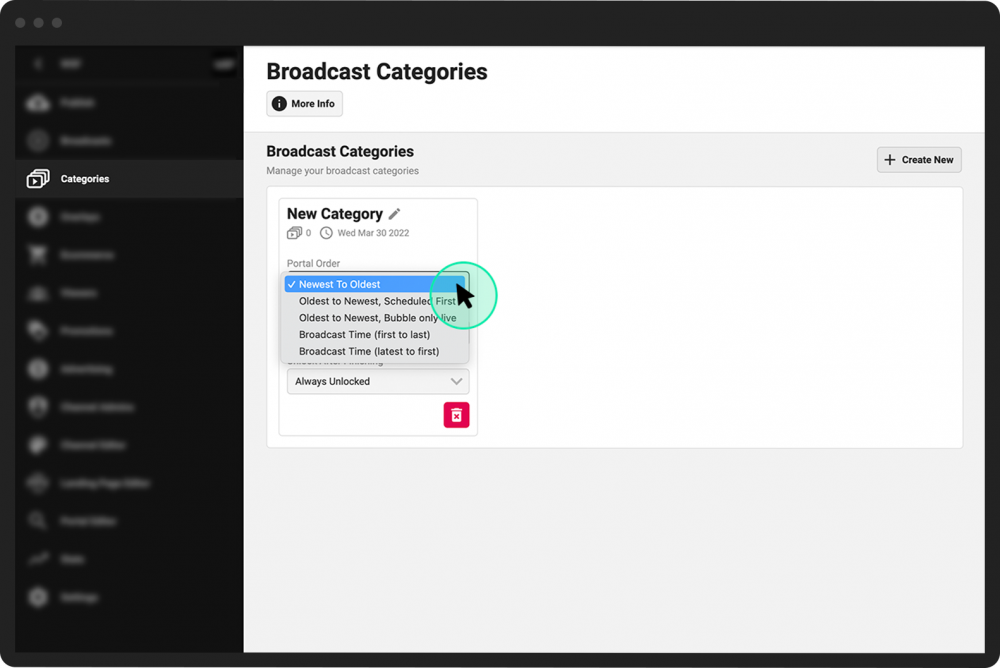
In the Portal Order dropdown menu, choose the order you would like the broadcasts to appear:
Newest to Oldest
Oldest to Newest, Scheduled First (broadcasts will appear oldest to newest, but any scheduled broadcast will appear first)
Oldest to Newest, Bubble only live (broadcasts will appear oldest to newest, but any currently live broadcast will appear first)
Broadcast time (first to last)
Broadcast time (last to first)
- 4
In the Watch Order dropdown menu, choose whether you want to enforce the viewing order (e.g., someone must watch the first video before they can watch the second video)(Must Watch in Order) or allow videos to be viewed in any order (All Unlocked).
- 5
In the Unlock After Finishing dropdown menu, choose the next category you want viewers to watch when they finish all the videos in the current category. Otherwise, choose Always Unlocked to unlock all categories for viewing.

You can either assign a broadcast category when you create a new broadcast, or else add/edit the category afterwards in the broadcast’s Control Room.
- 1
From your Channel Dashboard, click Broadcasts on the far-left menu.
- 2
Locate the broadcast you are looking for and click Control Room directly under it.
- 3
Click the Edit tab below your video’s preview screen.
- 4
Under Broadcast Category (optional), choose an existing category from the dropdown menu, or click the + Create New category to create and assign a new category simultaneously.
- 5
Click the green Update Broadcast button at the bottom of the page.