

What is the Control Room?
The Control Room allows a Channel Admin to edit a broadcast, track metrics, and use features such as Overlays and the Scorebug Manager.
To enter a broadcast's Control Room:
- 1
From the PANDA dashboard, click the name of the channel where your broadcast resides.
- 2
Click Broadcasts on the far-left menu.
- 3
Locate the broadcast you are looking for and click Control Room directly under it.
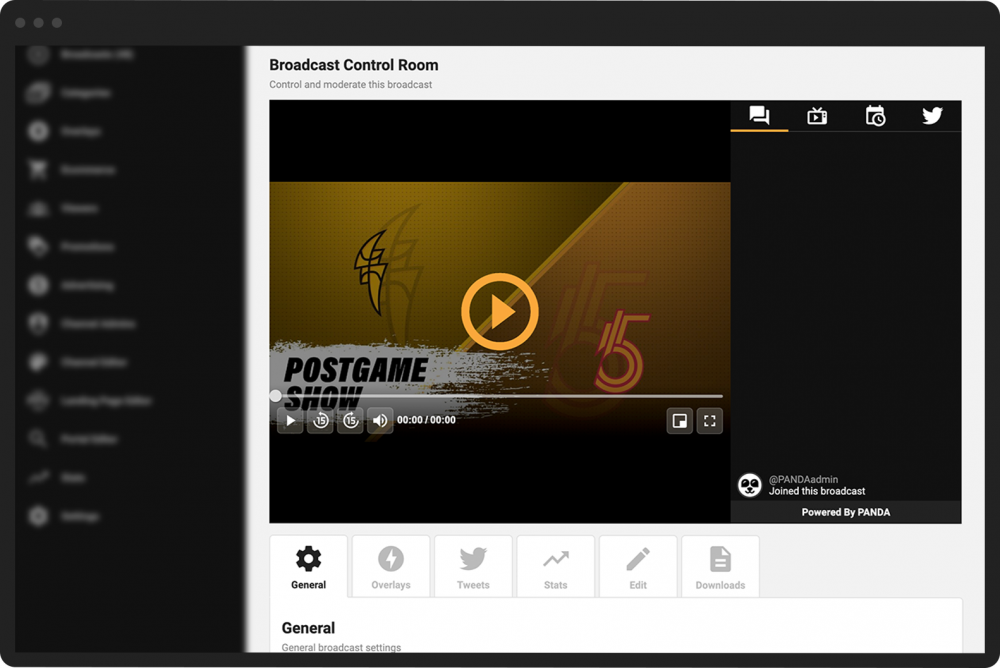
The Control Room interface contains the PANDA video player as it appears on the channel. Beneath it are several tabs where you can view and adjust your broadcast’s settings.
Edit the title of the broadcast.
Edit the description of the broadcast.
Click the View on Channel button to view the broadcast exactly how your viewers will view it
Click the Feature Broadcast button to spotlight the broadcast on the channel.
Click Download Video to save a copy of the broadcast locally.
Click Share to copy a link of the broadcast and/or share it to Facebook or Twitter.
Click Embed to copy the embed code for the broadcast.
Click Viewers Graph to see a traffic summary for the broadcast.

View and edit RTMP settings, including copying your stream key and hostname.
Create new and manually trigger existing overlays.
Customize your Twitter feed in relation to the broadcast.
Manage auto-published Twitter accounts and settings.
View your broadcast’s metrics.
Edit the title and description of the broadcast.
Recategorize the broadcast.
Change the broadcast thumbnail.

Add documents that viewers can download during the broadcast (when you have enabled this feature in the Channel Editor).
