

Invite and assign roles to a Channel Admin
Channel Admins have access to a Channel Dashboard and can perform many tasks depending on their role, including:
Editing and maintaining channels
Producing and editing broadcasts
Uploading and downloading videos
Viewing stats and analytics
Managing advertisements and engagement
To invite a new Channel Admin, first create a new user.
- 1
Sign into your PANDA dashboard.
- 2
Click Network Admins on the far-left menu.
- 3
Complete the fields under the Create User heading at the bottom of the page.
- 4
Click the green Create User button. Your new user will receive an email with log-in instructions at that time.

Once you’ve created your new user, you can assign them to a specific admin role within a channel or change their role once assigned.
- 1
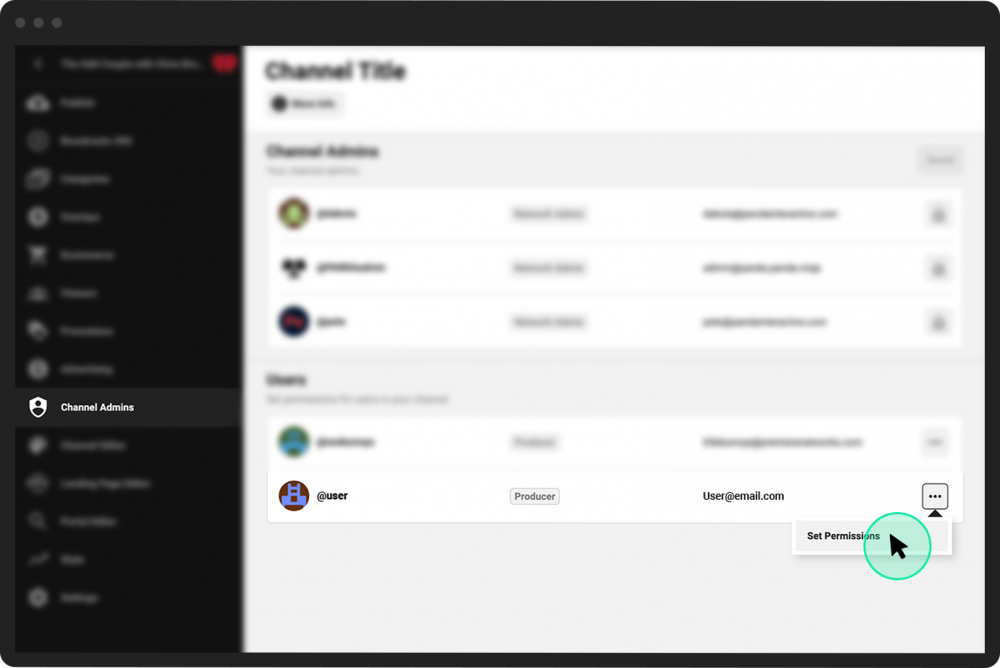
From the Channel Dashboard, click Channel Admins from the far-left menu.
- 2
Find the new or existing user from the list and click the ellipsis [...] next to their name.
- 3
Click Set Permissions.
- 4
Choose the desired role from the list (detailed below).
- 5
Click the green Save Permissions button.
You can assign users one of the following roles for a channel:
Moderator: Moderators can view streams and moderate viewer chat.
Creator: Creators can view and create their own streams and moderate viewer chat.
Producer: Producers can view and create streams, moderate viewer chat, and access the Control Room.
Manager: Managers have all the privileges of a producer, plus the ability to create and manage advertisements.
Channel Admin: Channel Admins can create and view all streams; moderate viewer chat; access the Control Room; add and remove admins and manage their channel roles; edit settings; and modify the appearance of the channel, including creating overlays and choosing engagement panels.