Upload and broadcast a video to a channel
In addition to creating live streams using RTMP, you can upload videos directly to a PANDA channel.
- 1
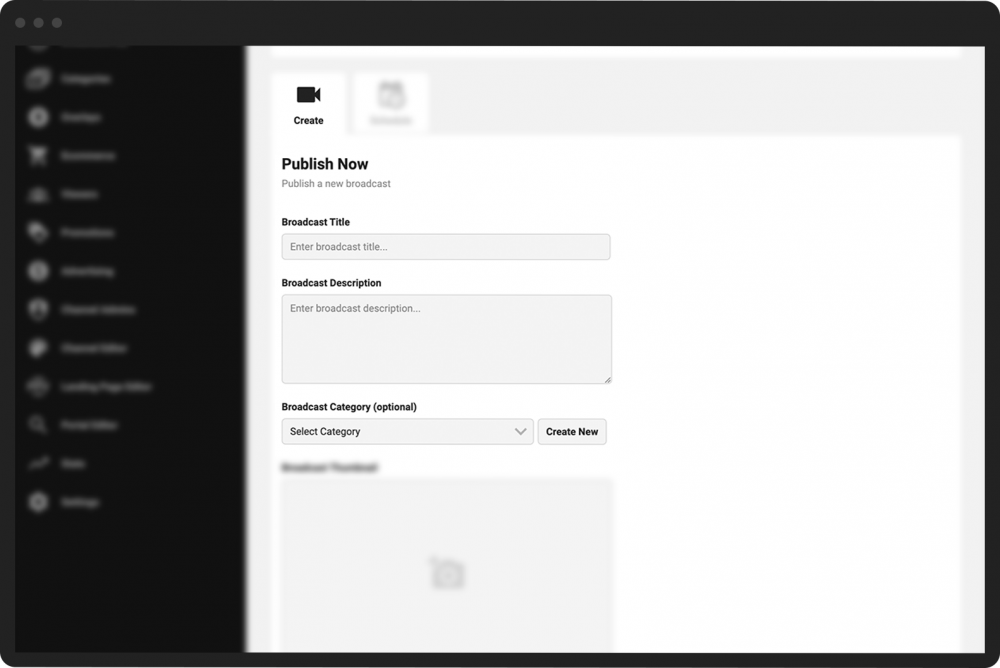
From the desired Channel Dashboard, click Publish on the left-hand menu.
- 2
Under the Create tab, populate the fields under the Publish Now heading, including:
Broadcast Title
Broadcast Description (optional)
Broadcast Category (optional)
- 3
Click the camera icon to upload a broadcast thumbnail image.
Note: The recommended resolution for broadcast thumbnail images is 1280x720 or 1920x1080.
- 4
Click the Upload button towards the bottom of your screen.
- 5
Click Upload Video to select a video to upload.
Note: The preferred video type is web-ready mp4. Other file types are supported, but will require PANDA to transcode the video before it can be broadcast (which can result in a short delay.)
- 6
Choose how you would like to broadcast your video:
Select Simulate Live to upload the video as a live broadcast.
Select Instant VOD to upload the video as a video-on-demand.
- 7
Upload or add a watermark (optional).
- 8
Click the Create Broadcast button.