

Schedule a broadcast in advance
PANDA provides a number of options for broadcasting video from your channel, including choosing when you want to broadcast it. Whether you’re using an RTMP live stream, uploaded video file, or external source for your video, you can schedule when it will stream live on your channel.
Note: When scheduling a broadcast, the time and dates you choose will be those in your current timezone. If you want to schedule a broadcast for a different timezone (e.g., you are in New York, but the broadcast begins at 8 p.m. in California), you should choose the time that your broadcast will take place in your current timezone (e.g., 11 p.m. in New York, in the example above.)
To schedule a new broadcast:
- 1
In the PANDA dashboard, click Channels on the far-left menu.
- 2
From the dropdown menu, click the name of the channel where you want to publish your broadcast.
- 3
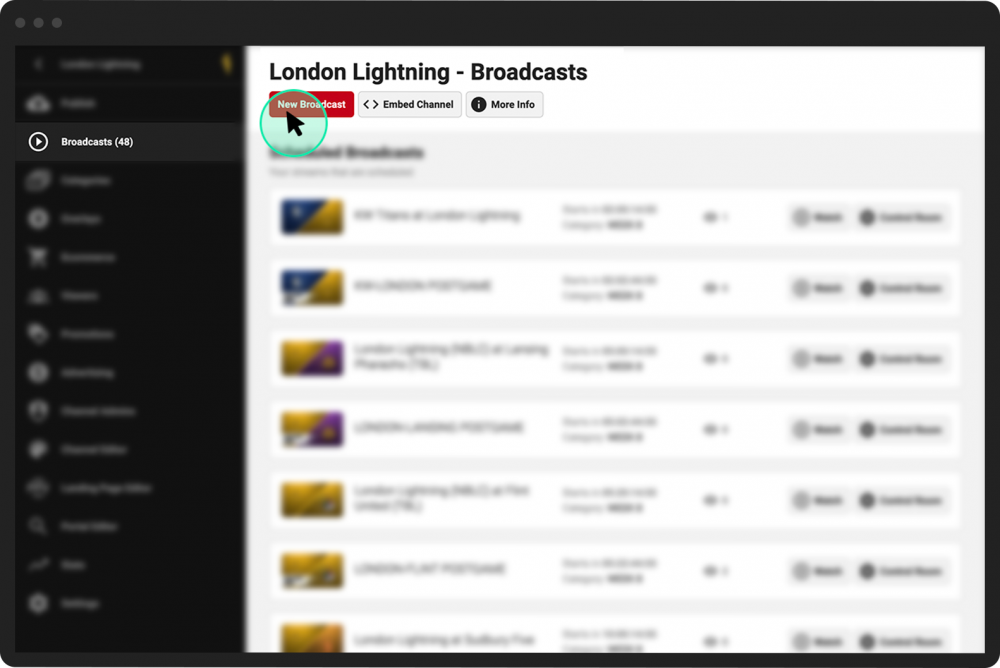
Click Publish from the far-left menu, or click the green New Broadcast button near the top of your screen.
- 4
Click the Schedule tab.
Populate the fields under Schedule, including:
Scheduled start date
Start time
Broadcast Title
Broadcast Description
Broadcast Category
- 5
Click the camera icon to upload a Broadcast Thumbnail image.
- 6
Choose the type of broadcast it will be (Upload, Go Live, RTMP, or External).
- 7
Complete the additional fields based on your broadcast choice.
- 8
Click the green Create Broadcast button.


Now that you’ve created your broadcast, your broadcast’s Control Room will appear. From there, you can view and adjust your broadcast settings.