

Create or schedule a new broadcast from an external link
PANDA provides a number of options for broadcasting video from your channel. In addition to RTMP live streams and uploading video files, you can also create a broadcast using a video from an external source, such as a link to an external mp4 file, or a YouTube video link.
To create or schedule a new broadcast from an external link:
- 1
In the PANDA dashboard, click Channels on the far-left menu.
- 2
From the dropdown menu, click the name of the channel where you want to publish your broadcast.
- 3
Click Publish from the far-left menu, or click the New Broadcast button near the top of your screen.
- 4
Click the Create or Schedule tab, depending on whether you want your broadcast to appear immediately or at a scheduled time later.
- 5
Populate the fields under Publish Now, including:
Broadcast Title
Broadcast Description
Broadcast Category
- 6
Click the camera icon to upload a Broadcast Thumbnail image.
- 7
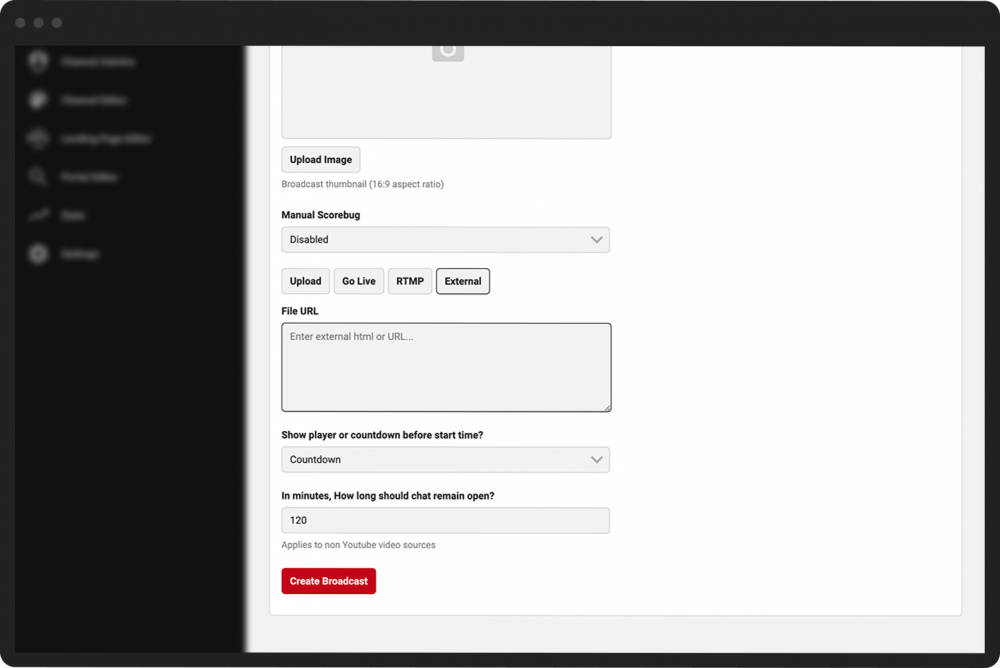
Click the External button.
- 8
Enter the URL for your external video file in the File URL box.
- 9
Make a selection in the Show player or countdown before start time? pulldown menu.
- 10
Set how many minutes you want the chat to remain open. (Note: this setting does not apply for YouTube links.)
- 11
Click the Create Broadcast button.



Now that you’ve created your broadcast, your broadcast’s Control Room will appear. From there, you can view and adjust your broadcast settings.