Choose the default engagement panels for your entire network
PANDA offers several types of interactive engagement panels to display beside your broadcasts. The default engagement panel – and the only one that cannot be turned off – is Live Chat. You can enable additional engagement panels that will appear across every channel in your network and/or customize panels for a specific channel.
To choose default engagement channels for your entire PANDA network:
- 1
Log in to your PANDA dashboard.
- 2
Click Default Channel Styles from the far-left menu.
- 3
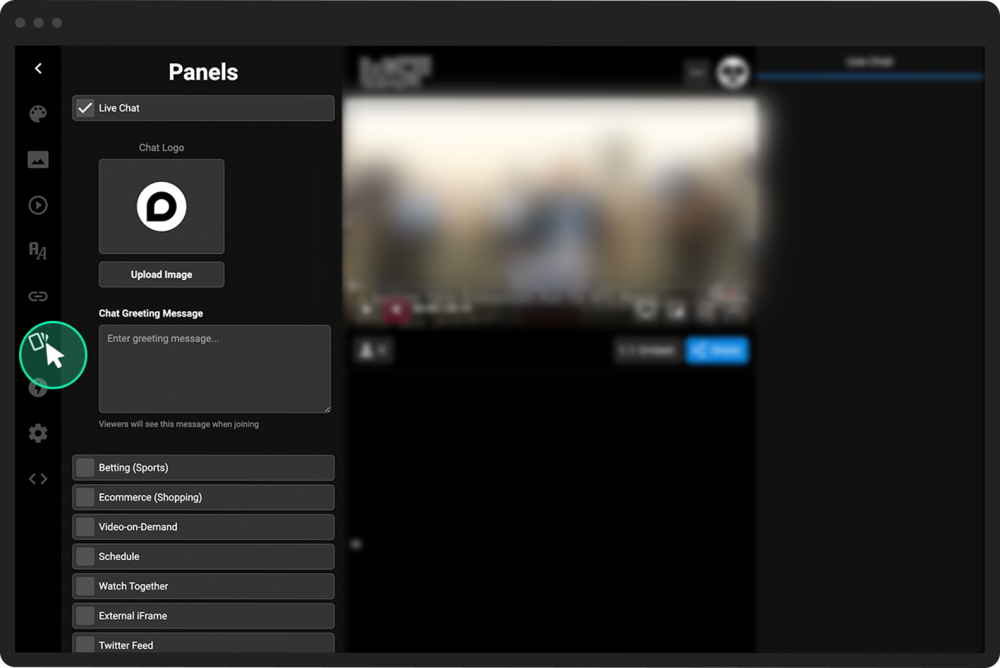
From the far-left menu, choose the panels icon.
- 4
Check the boxes for any panel that you wish to add. Uncheck the boxes for any panels you wish to remove.
- 5
When you check a box, some customization options will appear, depending on which panel you selected. For example:
For the Live Chat panel, you can upload an image to use as the default logo in the chat panel, as well as add a message that viewers will see when they join the broadcast.
For the Betting (Sports) panel, see Set up the Betting Panel.
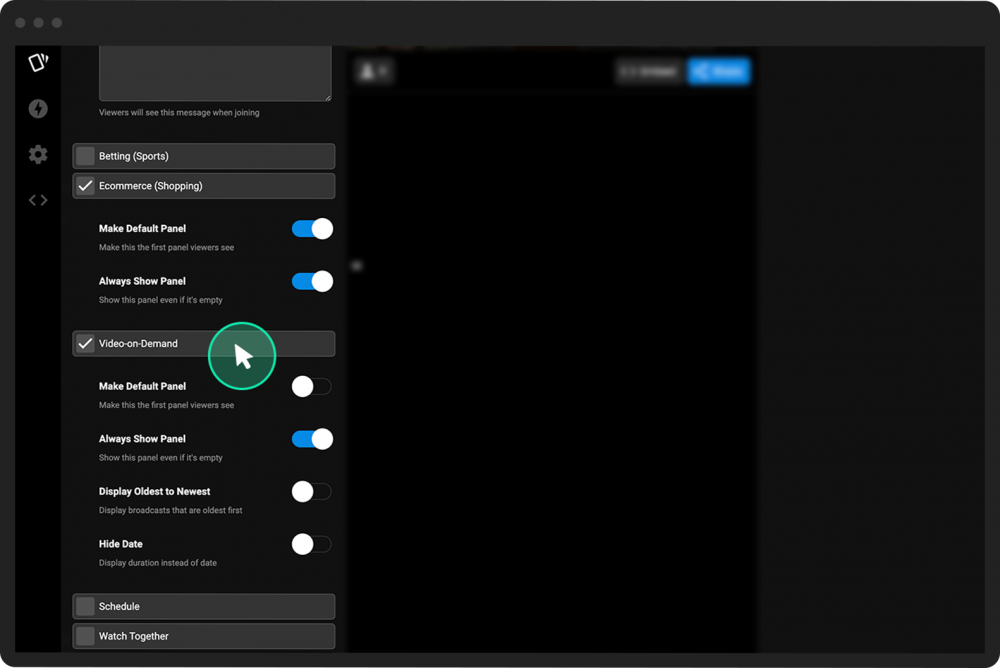
For the Ecommerce (Shopping) panel, you can toggle the buttons ON or OFF to:
Make it the default panel (i.e., the first panel your viewer sees).
Always show the panel, even when it’s empty.
Note: See Sell merchandise during a broadcast for more info on setting up this panel.
For the Video-on-Demand panel, which displays links to your VOD and broadcast replays, you can toggle the buttons ON or OFF to:
Make it the default panel (i.e., the first panel your viewer sees).
Always show the panel, even when it’s empty.
Display the oldest broadcasts first.
Display the video duration instead of the video date.
For the Schedule panel, which displays links to your upcoming scheduled broadcasts, you can toggle the buttons ON or OFF to:
Make it the default panel (i.e., the first panel your viewer sees).
Always show the panel, even when it’s empty.
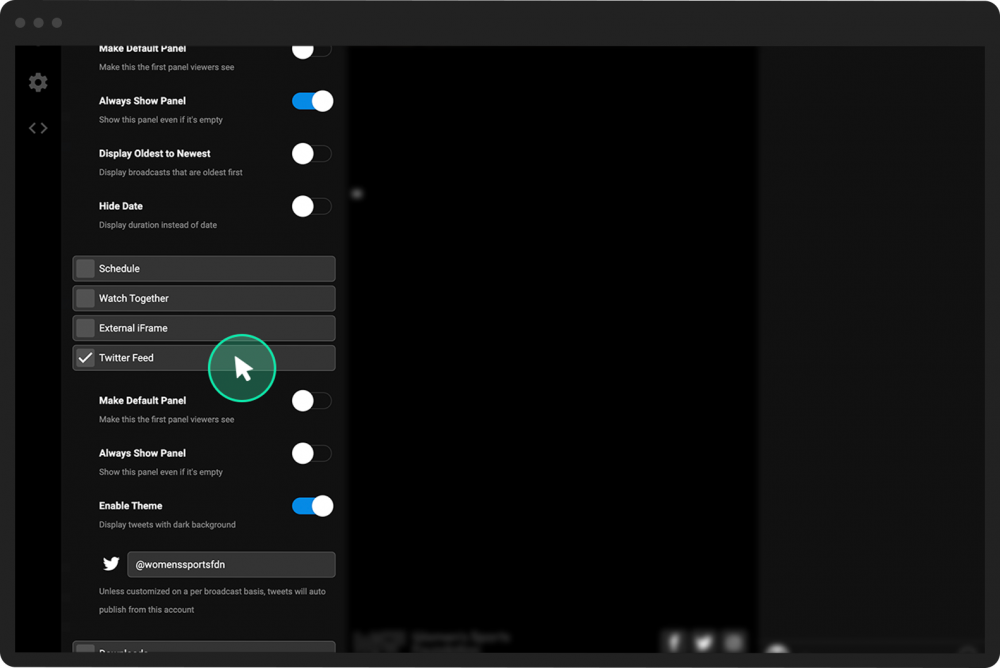
For the Twitter Feed panel, you can:
Make it the default panel (i.e., the first panel your viewer sees).
Always show the panel, even when it’s empty.
Display tweets with a dark background.
Add the Twitter account name for the tweets that you want to appear
For the Downloads panel, you can:
Make it the default panel (i.e., the first panel your viewer sees).
Always show the panel, even when it’s empty.
Change the name of the panel.
- 6
Click the green Save Settings button in the top-right corner of your screen.