

Sell merchandise during a broadcast
PANDA allows you to turn any broadcast into an immersive, interactive shopping experience simply by linking a Shopify store to your channel. Your viewers can click on items during a broadcast and instantly purchase merch directly from your eCommerce engagement panel – without ever leaving your page.

Setting up your channel’s shopping experience involves (1) enabling the eCommerce engagement panel, (2) linking your Shopify store to your channel, and (3) choosing items from your store to list for sale in your panel.
- 1
From your Channel Dashboard, click Channel Editor from the far-left menu.
- 2
From the far-left menu, choose the panels icon.
- 3
Check the box next to Ecommerce (Shopping).
- 4
Toggle the Make Default Panel button ON as desired to make this the first panel viewers see when they view a broadcast.
- 5
Click the green Save Settings button in the top-right corner of your screen.

- 1
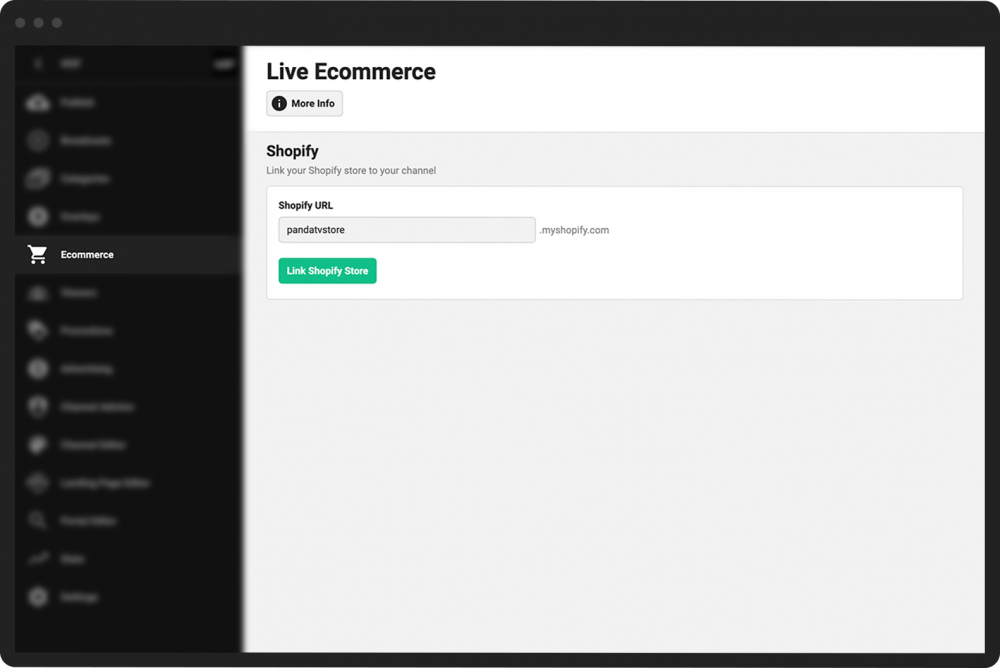
From your Channel Dashboard, click Ecommerce from the far-left menu.
- 2
In the Shopify URL box, enter the first part of the URL for your Shopify store. (For example, if your full Shopify URL is pandatest.myshopify.com, enter “pandatest” in the box.)
- 3
Click the green Link Shopify Store button.
- 4
Login to your Shopify account in the window that appears.
- 5
In Shopify, click the purple Connect button next to the name of your store.
- 1
From your Channel Dashboard, click Ecommerce from the far-left menu.
- 2
Your linked Shopify store will now be displayed, along with an Available Items section that shows all the items in your store.
- 3
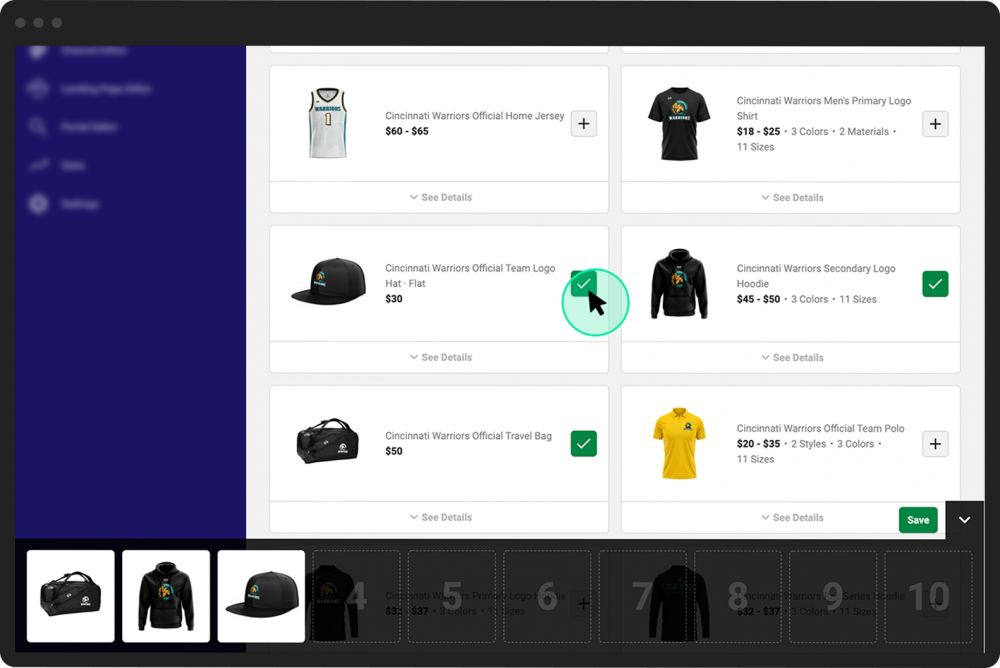
Click the + button next to an item that you want to add to your eCommerce panel. (You can add up to 10 items.) The items you choose will appear in the boxes at the bottom of the screen as you add them.
- 4
Click the green Save button located in the lower right-hand corner of your screen.

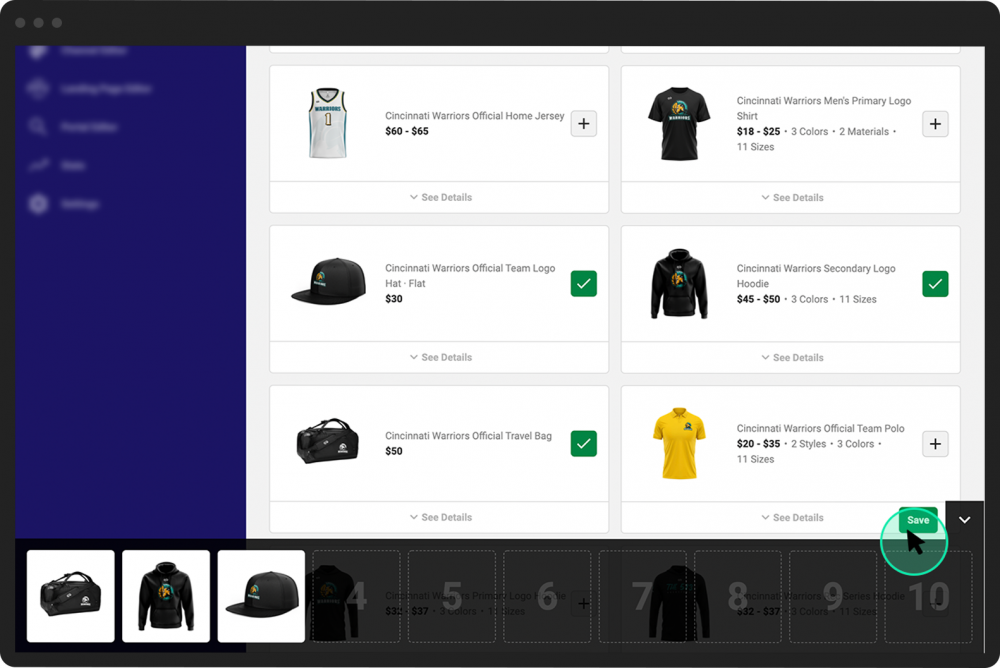
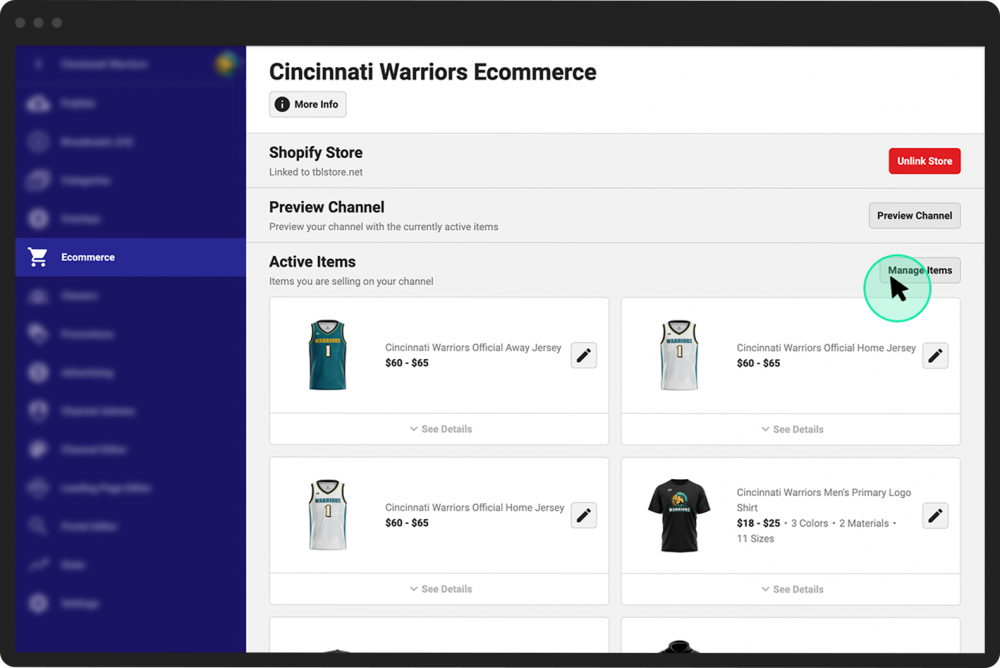
The next time you go to your Ecommerce settings page, you’ll see a list of all the active items for sale on your channel. Click the Manage Items button (or the pencil icon next to any active item) to add or remove items as desired.
PANDA Pro Tip:
To boost your in-broadcast sales, consider using interactive overlays to promote items and encourage shopping during videos. For example, you can create an overlay that instantly opens the eCommerce panel when a viewer clicks on it during the video.
