

Create a new overlay
Overlays are custom images and text that can appear during your videos. Overlays are interactive, meaning that when one appears in the broadcast, a viewer can click on it.
To create a new overlay:
- 1
From your Channel Dashboard, click Overlays on the far-left menu.
- 2
If you've never created an overlay before, the Create New Overlay screen will load. Otherwise, click Create Overlay in the top right.
- 3
Click Upload Image to add the picture that will appear in your overlay.
- 4
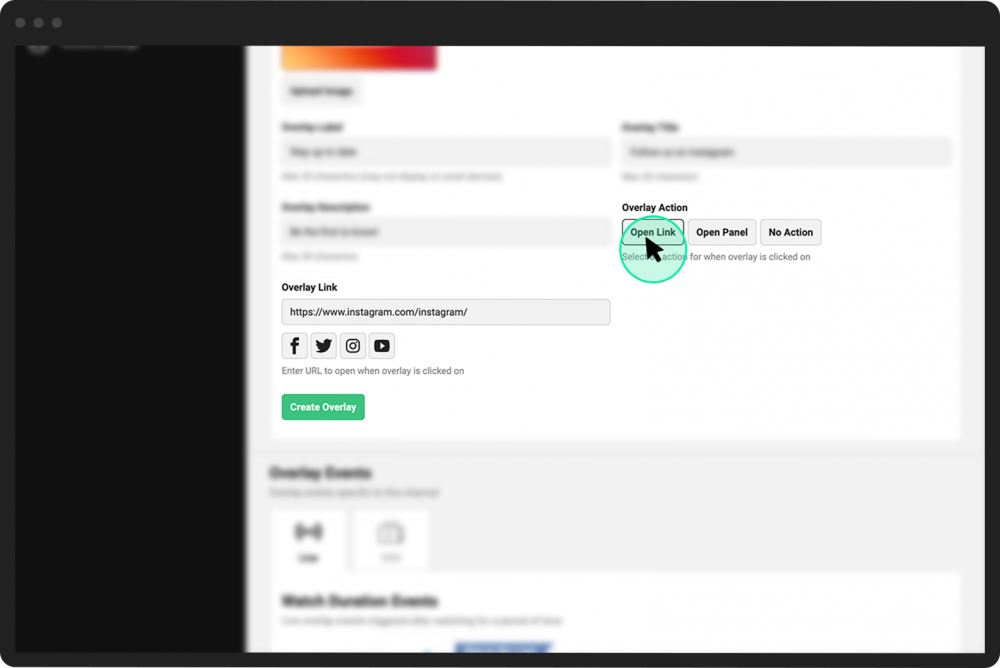
Add text to the Overlay Label, Overlay Title, and Overlay Description fields.
- 5
Preview the changes to your overlay in the Overlay Preview as needed.
- 6
Choose how you want your overlay to be interactive. You can set an overlay to do one of three things when a viewer has clicked on it.
Open a Link. Click this button to have a new tab open in the viewer's browser when they click the overlay. Paste the URL where you want to send your viewers into the Overlay Link box.
Open a Panel. Click this button to open an engagement panel when a viewer clicks the overlay. Under Open Panel, open the dropdown menu, which displays all your activated engagement panels. Select which panel you would like to open.
No Action. Click this button if you want the overlay to appear during the broadcast without being interactive/clickable.
- 7
Click the Create Overlay button. This overlay will now be available for all your broadcasts on this channel.



After creating your overlay, you can automate when that overlay will appear during your broadcasts.