

Automate an overlay
You can set any of your overlays to open at specified times during a broadcast.
- 1
From your Channel Dashboard, click Overlays on the far-left menu.
- 2
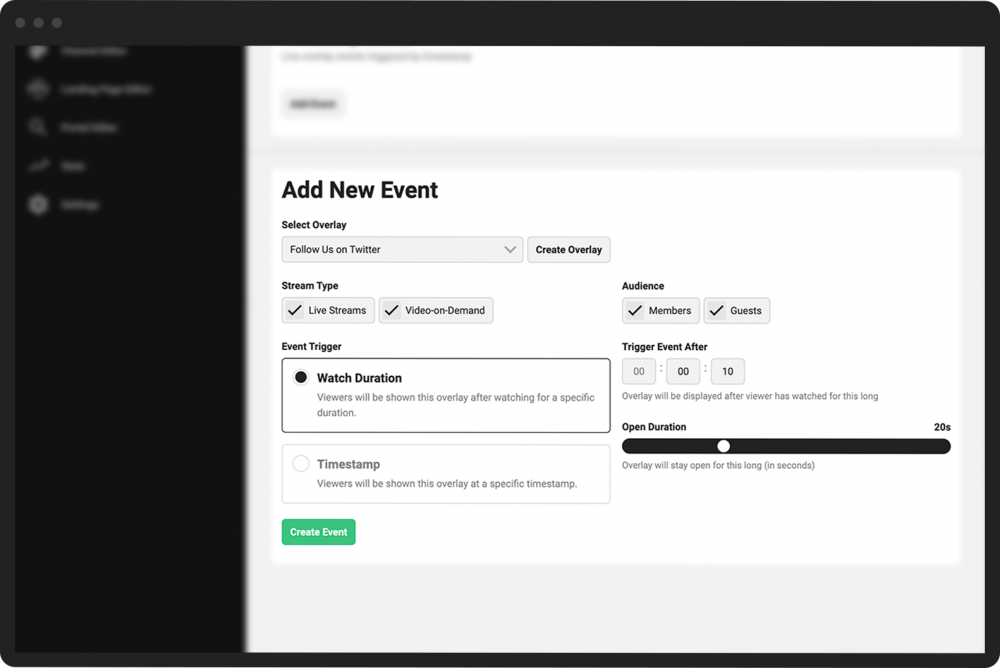
Scroll down to the Add New Event section.
- 3
Set the specific circumstances and features of your desired automated overlay:
Select Overlay brings up a pull-down menu with all your uploaded overlays to choose from. Alternatively, you can click Create Overlay to make a new one.
Stream Type determines whether the automated event will apply to live streams, Video-on-Demand, or both.
Audience allows you to limit who will see the overlay: members, guests, or both.
Event Trigger determines whether the overlay appears after the viewer has watched for a particular amount of time (i.e., watch duration) or at a particular time stamp in the broadcast.
Trigger Event allows you to enter the time stamp at which the overlay will appear, or to indicate the amount of time before the overlay appears, depending on your selected event trigger.
Open Duration indicates the length of time the overlay will remain on the video for this particular event.
- 4
Click the Create Event button.
You can add multiple overlay events to a single broadcast following the steps above. Once you’ve created your event, it will appear in the Overlay Events section.
