Change the default video displayed on a channel
If you don't have the Channel Portal enabled, then when someone visits your channel, they will see a default video immediately begin to play. You can adjust what the default video for your channel will be.
- 1
In the Channel Dashboard click Settings at the bottom at the far-left menu.
- 2
Click the General Settings tab.
- 3
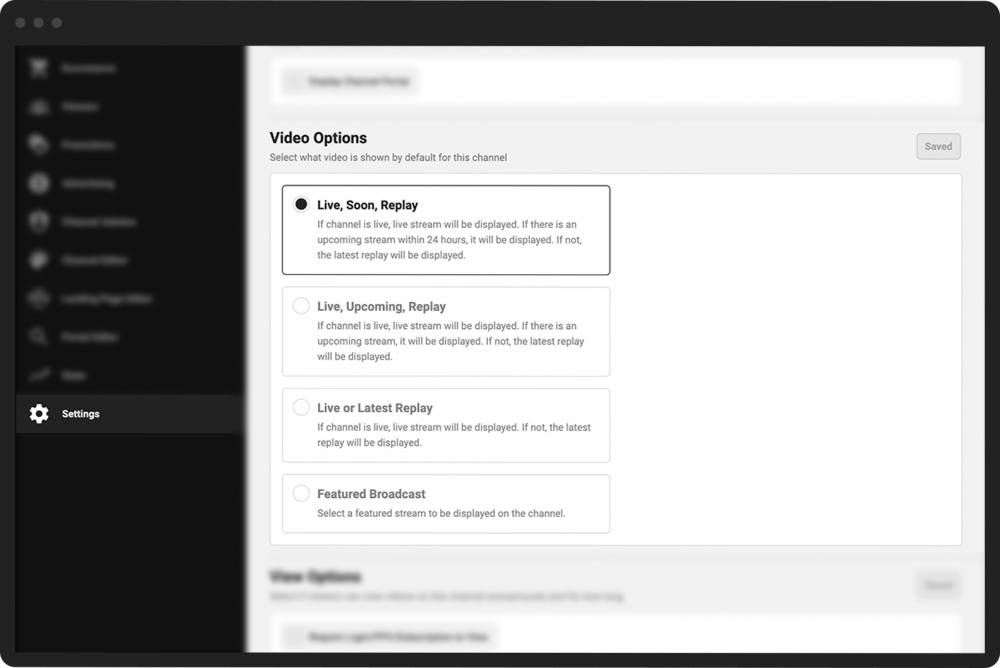
Scroll down to the Video Options section.
- 4
Choose the default video displayed for your channel by checking one of four boxes:
Live, Soon, Replay
Live, Upcoming, Replay
Live or Latest Replay
(A description of each option can be viewed under each option heading.)
- 5
Click the green Save button to the right of the Video Options heading.