

Create or delete additional RTMP stream keys
If you have more than one upcoming scheduled RTMP live broadcast on your channel, you will need a unique stream key for each upcoming broadcast.
- 1
From your Channel Dashboard, click Settings from the bottom of the far-left menu.
- 2
Click the Broadcasting Settings menu.
- 3
Scroll down to the RTMP Keys section.
- 4
In the Create New Key field, enter a name for your new key (e.g., Key2).
- 5
In the Key Description field, enter a description for your key (e.g., For Sunday Streams).
- 6
Click the green Create Key button.

Your new key will now be available to select in the Stream Key section when you’re creating a new RTMP broadcast.
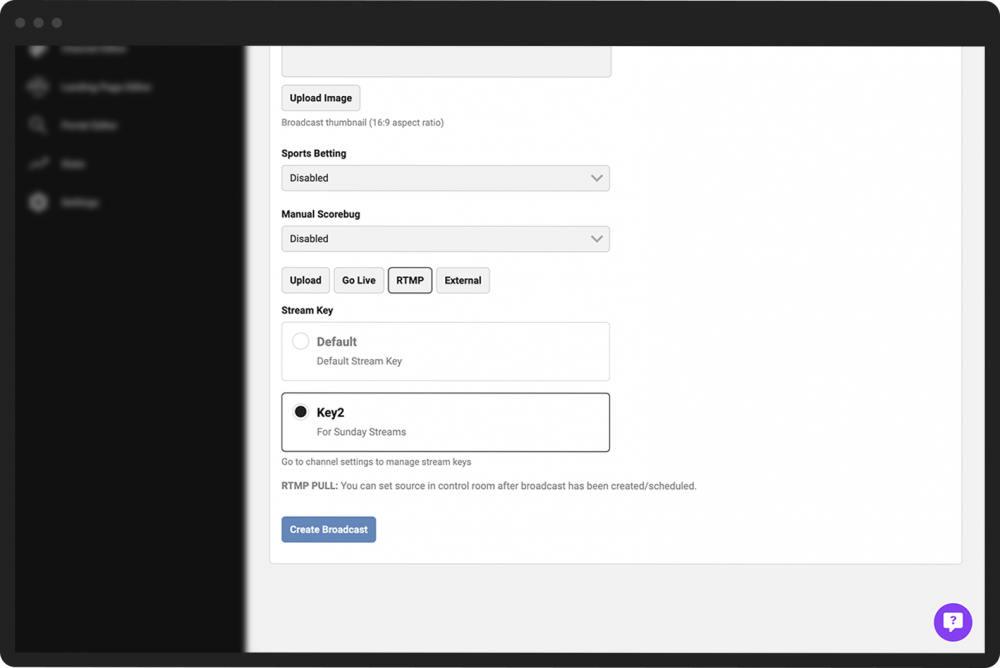
Note: Each new key will also have a corresponding Zoom Specific Key that you must use when live streaming from Zoom.
- 1
From your Channel Dashboard, click Settings from the bottom of the far-left menu.
- 2
Click the Broadcasting Settings menu.
- 3
Scroll down to the RTMP Keys section and then find the key you would like to delete.
- 4
Click the red trash icon.
- 5
Click the Delete Key button when prompted.
