

Moderate the chat during live broadcasts or replays
During a live stream, Channel Admins can participate in as well as moderate the chat as needed to spotlight or delete messages and mute users when necessary.
To moderate a chat (either during the live broadcast or after it has ended):
- 1
Login to the PANDA dashboard using a Channel Admin account.
- 2
From the far-left menu, under Channels, select the channel name where your broadcast will be.
- 3
Navigate to the Control Room for the broadcast you want to moderate.
- 4
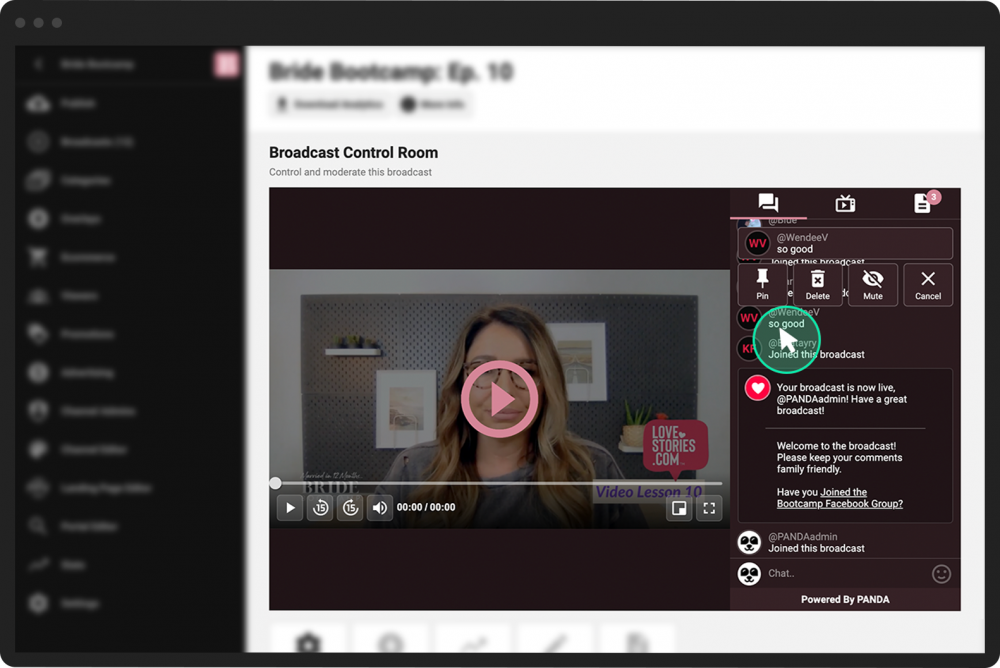
In the display area, open the Live Chat panel and view the chat messages. Click or tap on a message you want to moderate. You will see four button options under the message:
Click the Pin button to feature someone's message in the chat panel for all viewers.
Click the Delete button to delete a message.
Click the Mute button to delete all the chat messages from a user and to prevent other users from seeing their chat messages in the future (i.e., shadowban the user).
Click Cancel to return to the chat without any actions.
Note: When logged in as an admin, you can also moderate the chat straight from the broadcast's page.