

Create and edit a landing page for your channel
If you enabled PPV and subscriptions for your channel, you can set up and customize a landing page to promote your broadcasts and sell your subscription packages. Viewers who are not yet subscribed to your channel will be directed to your landing page whenever they visit your channel.
- 1
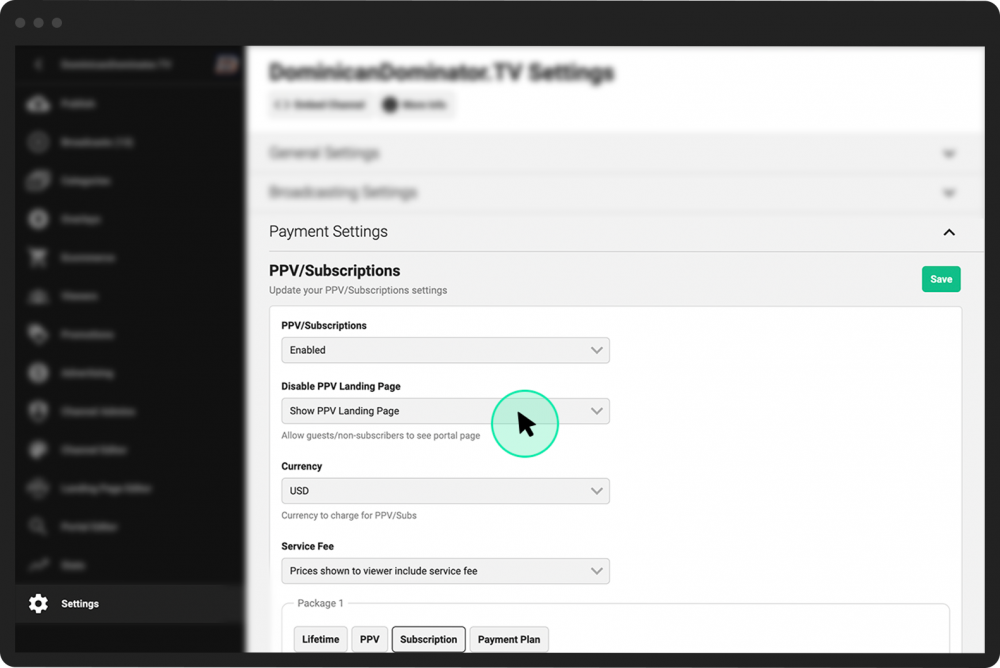
From your Channel Dashboard, click Settings from the bottom of the far-left menu.
- 2
Click the Payment Settings tab.
- 3
In the PPV/Subscriptions section, under the Disable PPV Landing Page field, select Show PPV Landing Page from the dropdown menu.
- 4
Click the green Save button to the right of the PPV/Subscriptions heading.
- 1
From your Channel Dashboard, click Landing Page Editor from the far-left menu.
- 2
Use the icons in the left-hand menu to navigate your editing options for your landing page.
- 3
Make your desired changes in each area (see below).
- 4
View a preview of your landing page on the right half of the screen. Switch between previews of how your page will look on a laptop, tablet, or mobile device by clicking the icons at the top right of the screen (to the left of the Save Settings button).
- 5
Click the green Save Settings button in the top right of your screen.
- 6
Click Save in the pop-up window to confirm.

Navigation–Preview and/or upload a new navigation logo and click the Sm, Md, or Lg button to adjust the size. (The navigation logo is an image that will appear at the top-left of the screen that will take viewers to your channel home screen/portal when they click on it.)
Header–Customize the text, logo, background images, and buttons for the main landing page header section.
Footer–Customize the logo and copyright footer text.
Page Settings–Change the page title and share image.
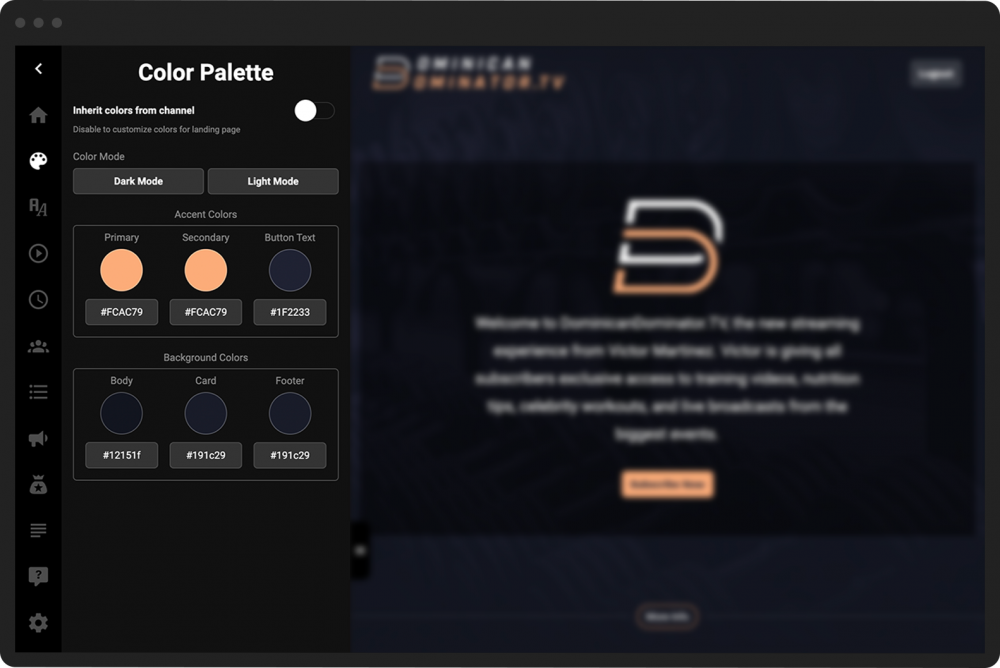
Toggle the Inherit colors from channel button ON to use the same colors from your overall channel (as established in your Channel Editor).
If the button is toggled OFF, you can customize your color mode, accent colors, and background colors as desired.
View and/or select new fonts for your portal’s header, body, and buttons.
Toggle the Activate video button ON to display a welcome video.
Add a URL for the video, specify the size, and upload a poster image.
Toggle the button ON to display a countdown clock for the next scheduled broadcast on your channel.
Add a label for the countdown section on the page.

Add featured boxes to spotlight special guests or other items. Enter a name and upload an image for each feature box.
Click the trashcan icon next to the name to delete a feature box.
Click the Add Special Guest / Featured button to add additional boxes.

Toggle the Display borders button ON to show borders between info blocks.
Customize the size and position of the info blocks.
Add a label, title, description, and image for each block.
Click the trashcan icon next to the label to delete an info block.
Click the Add Info Block button to add additional blocks.

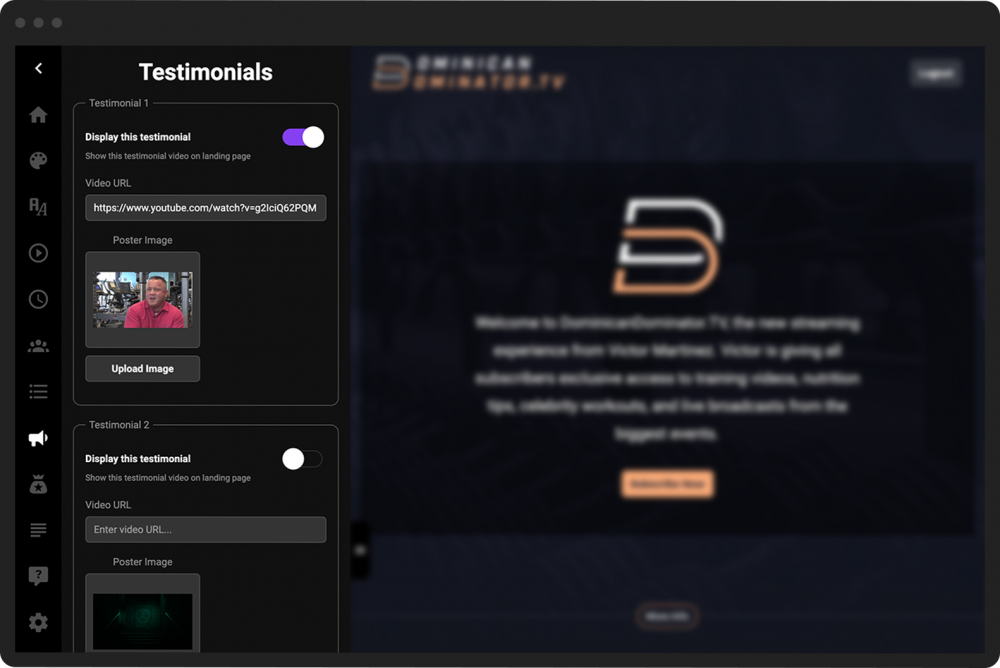
Toggle the Display this testimonial button ON to include a video testimonial. (You can display up to four testimonials on your landing page.)
Add the URL and upload a poster image for the testimonial.
Display and share details about up to three pricing packages for your channel. (These sections will correspond to the PPV/Subscription options you set in your Channel Settings.)
Toggle the Display package button ON to show the details on the landing page.
Enter a display title for each package and the price.
For your package description, click the List or Paragraph button to choose how you will display your description. If you choose a list, use the buttons provided to add or delete items. [

Customize your button text.
Upload an image for your package. (Click the trashcan icon next to the Upload Image button to delete the image.)
Check the Highlight Pricing Package to display a highlighted border around the package.

Toggle the Display text row button ON to add an additional text section to your landing page. Populate the text fields as desired.

Toggle the Display FAQ button ON to include a question and answer on your landing page.
Enter the question and the answer in the fields provided. Click the trashcan icon next to the Question field to delete the question.
