

Set up PPV and subscriptions
In addition to advertising, you can monetize your PANDA network by offering Pay-Per-View (PPV) and/or subscription options to your viewers. You can set prices and design subscription packages for each channel in your network.
- 1
From your Channel Dashboard, click Settings from the bottom of the far-left menu.
- 2
Click the Payment Settings tab.
- 3
In the PPV/Subscriptions section, go to the PPV/Subscription dropdown menu and choose Enabled.
- 4
Under the Disable PPV Landing Page dropdown menu, choose Show Channel Portal if you don’t want there to be a specific landing page for your PPV/Subscription options for non-subscribers or guests. If you want the landing page, choose Show PPV Landing Page.
- 5
Choose your desired payment currency from the dropdown menu (USD, GBP, CAD, or EURO).
- 6
Under Service Fee, use the dropdown menu to choose whether you want viewers to see the service fee when they see your price. Select Prices shown to viewer include service fee to hide the service fee. Select Charge viewer service fee on top of PPV/Sub price to disclose the service fee.
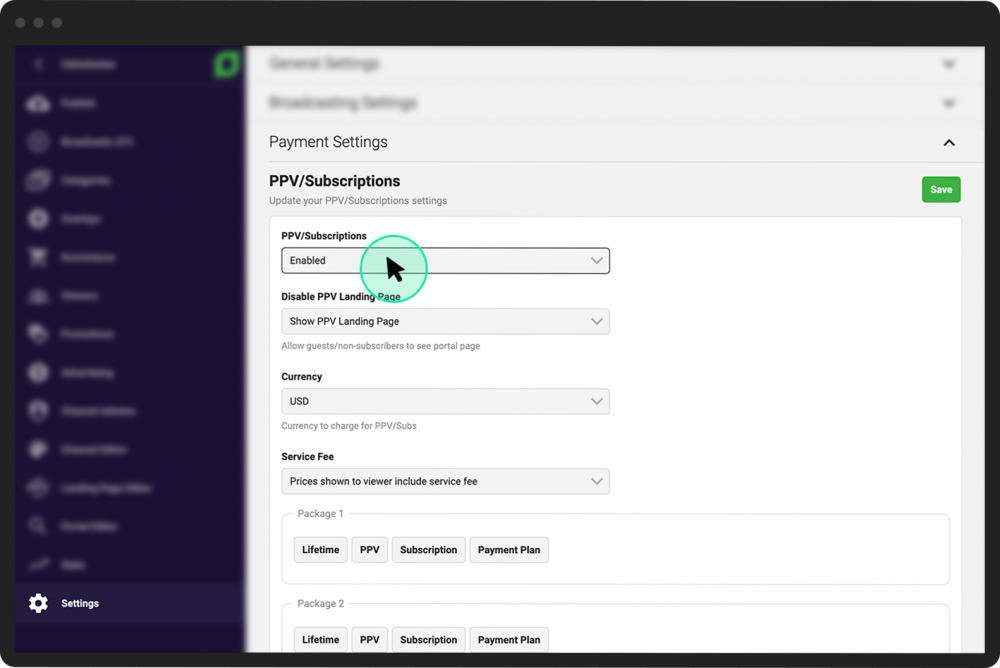
You can make up to three PPV or subscription packages available to your viewers.
- 1
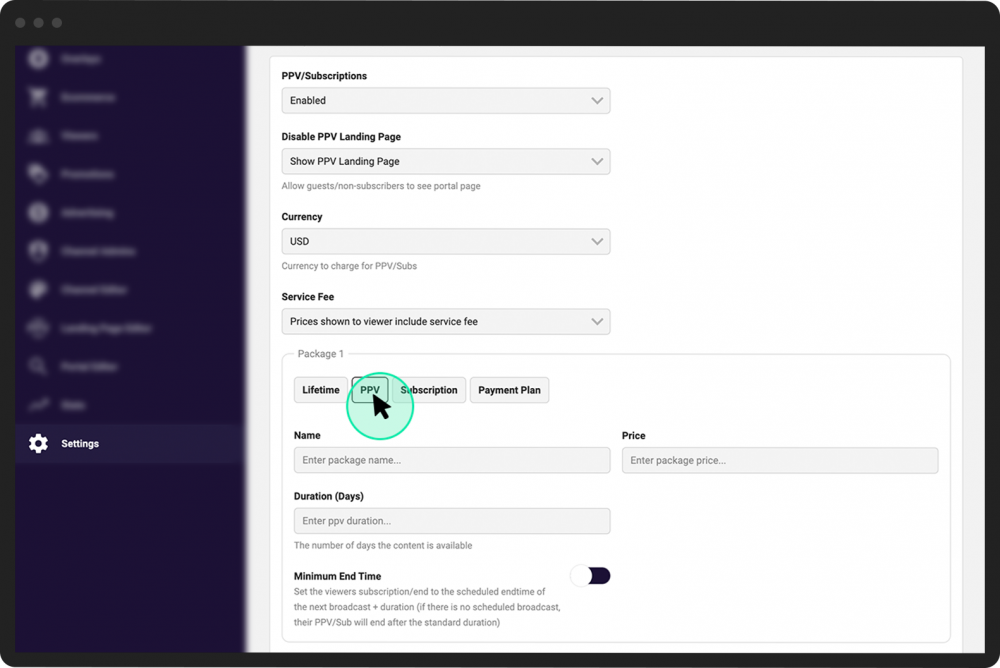
Under the Package 1 heading, click one of the buttons to choose what you will offer:
Lifetime–Gives the viewer unlimited access to a channel for life.
PPV–Gives the viewer limited-time access to a channel (such as for special events).
Subscription–Gives the viewer unlimited access to a channel for a set time period (such as a month), with automatic renewals.
Payment Plan–Lets the viewer pay for unlimited lifetime access in installments instead of all at once.
- 2
Populate the fields that appear for your chosen subscription type, which may include:
Name–Type a name for your package
Price–The price of the package (it will appear in your chosen currency)
Duration (Days)–The number of days the subscription will last (for PPV and subscriptions) OR the number of days between each scheduled payment installment (for payment plans).
Minimum End Time–Toggle this button ON if you want the viewer’s access duration to begin after the endtime of the next scheduled broadcast. (For example, if your viewer buys a 30-day subscription on Monday and your next scheduled broadcast is on Wednesday, their 30 days will begin after Wednesday’s broadcast. (If this button is toggled OFF, the 30 days would begin on the same day/time that the subscription was purchased.)
- 3
Complete Packages 2 and 3 using the same steps above as desired.
- 4
Click the green Save button located to the right of the PPV/Subscriptions section heading.
