

Customize and edit your Channel Portal
If you have enabled the Channel Portal for your channel, the Portal Editor allows you to customize the look, layout, and content that your viewers will see when they navigate to your panel.
To open your Portal Editor and adjust your portal:
- 1
Enable the Channel Portal in your channel settings.
- 2
In your Channel Dashboard, click Portal Editor from the far-left menu.
- 3
Choose the icon for the portal elements you would like to edit from the left-hand menu.
- 4
Make your desired changes in each element (see below).
- 5
View a preview of your portal on the right half of the screen. Switch between previews of how your portal will look on a laptop, tablet, or mobile device by clicking the icons at the top right of the screen (to the left of the Save Settings button).
- 6
Click the green Save Settings button in the top right of your screen.
- 7
Click Save in the pop-up window to confirm.

Navigation
Preview and/or upload a new navigation logo and click the Sm, Md, or Lg button to adjust the size. (The navigation logo is an image that will appear at the top-left of the screen that will take viewers to your channel home screen/portal when they click on it.)
Header
Preview and/or upload new images for the Header Background and Mobile Background.
Choose a Gradient Color for the header.Upload an info logo. (The info logo will appear on your portal directly above your welcome/info message.)

(Header, cont.)
Add text as desired to the Info Description box. (Otherwise, the text will display “Welcome to [ChannelName]”)
Add a link to an mp4 video file to display in the header section, if desired.
Toggle Display external button ON if you want to add another button next to the Keep Watching button in your portal heading. Add the text, URL, icon, and color for the button as desired.
Footer
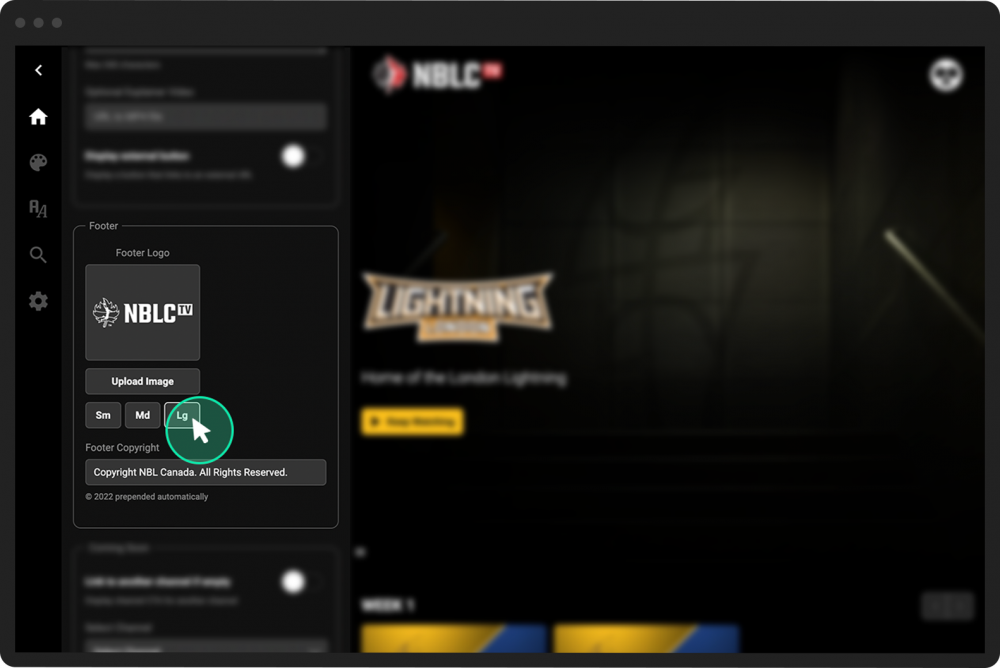
Preview and/or upload a footer logo that will appear in your portal’s footer. Click the Sm, Md, or Lg button to adjust the size as desired.
Add or edit the copyright text to list in your footer.
Coming Soon
Toggle the Link to another channel if empty button ON if you want to link to another channel if your current channel is empty.
Use the dropdown menu to select the desired channel.
Upload a logo and background image for the Coming Soon message.
Add a label, description, and button text in the provided fields.
Page Settings
Customize the title of your page. (Otherwise, the page title will be your channel’s name).
Upload a share image (the image that will be displayed whenever someone shares your channel’s URL).
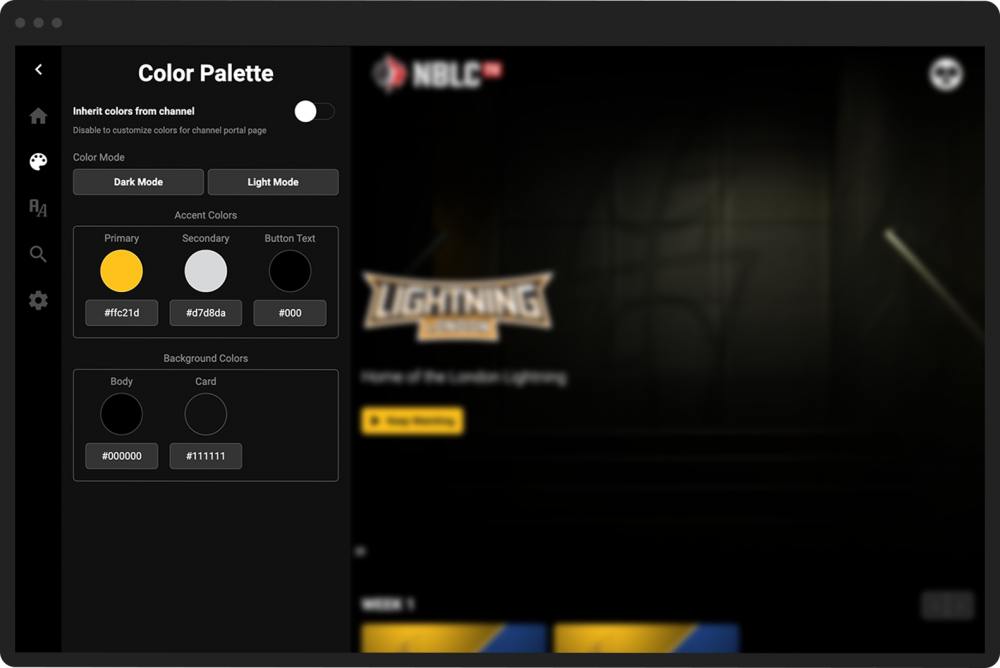
Toggle the Inherit colors from channel button ON to use the same colors from your overall channel (as established in your Channel Editor).
If the button is toggled OFF, you can customize your color mode, accent colors, and background colors as desired.
View and/or select new fonts for your portal’s header, body, and buttons.
Toggle the Hide Uncategorized Videos button ON if you do not want to display broadcasts that do not have a category.
Change the heading for your uncategorized videos as desired.
Toggle the Show Next Scheduled Broadcast Only button ON if you have multiple scheduled broadcasts in a category, but only want the next one to appear on your portal page.
Toggle the Bubble Live Categories button ON if you want categories that currently have an active live video to appear at the top of your portal page.
Toggle the List On-Demand Category First button ON if you want the first category listed to be for on-demand created live streams.
Toggle the Hide Watched Progress button ON if you do not want to display the viewer’s progress on a video (i.e., the percentage of the video they have viewed so far).
