

Create promo, coupon, and tracking codes for your network
PANDA allows you to create promo, coupon, and tracking codes that can help you promote your network, get more viewers, and better understand your audience. You can create codes for your entire PANDA network or codes that apply to specific channels.
- 1
When logged in to your PANDA dashboard, click Promotions from the far-left menu.
- 2
In the Promo Code field, enter the code you would like to create. This is typically a short combination of letters and numbers (e.g., FREETV2022).
- 3
In the Code Type section, choose the type of code you want to create. You can choose either:
Tracking Only. This creates a code that you can use to understand where your signups are coming from. You’ll be able to track every time a user signs up for your network using that specific code. Tracking codes do not have expiration dates.
Free Subscription. This code will grant your user a free subscription to your channel for a set amount of time.
Discount. This code will give your user a specific discount off of the standard subscription fee for your network.
- 4
Follow the additional steps below depending on which type of code you selected.
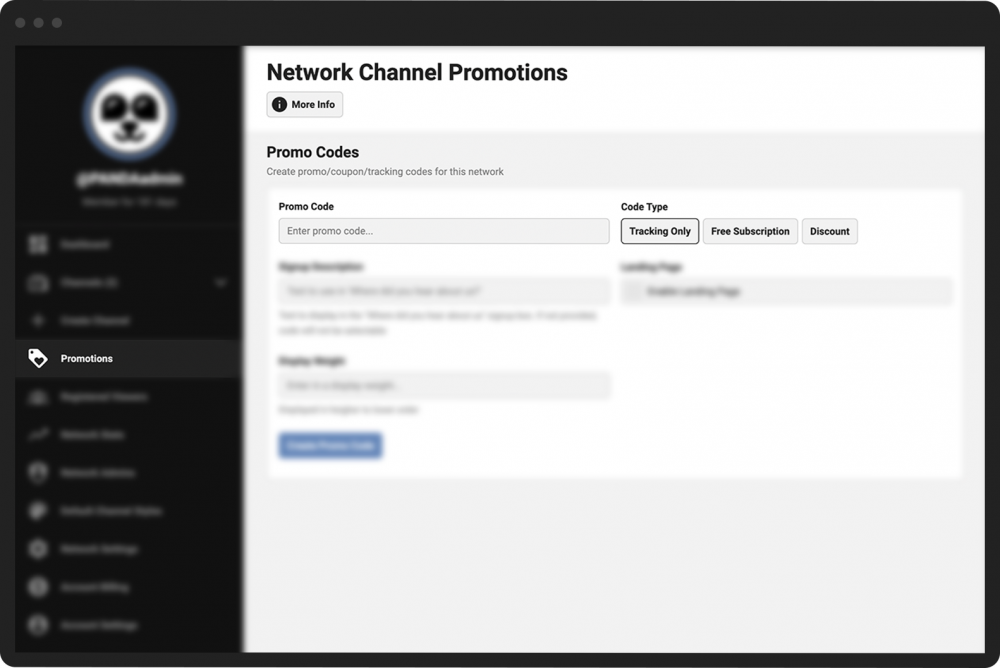
- 1
Click the Tracking Only button.
- 2
In the Signup Description field, enter the text that you would like displayed in your “How did you hear about us?” box when users sign up. (optional)
- 3
If you entered a signup description, next go to the Display Weight field. Enter a number that corresponds to where you would like your signup description to appear in the list. The higher the number, the higher it will appear in the list. (optional)
- 4
Check the Enable Landing Page box if you would like to create a unique landing page specific to your code. (optional)
- 5
Click the green Create Promo Code button.
Note: To view how often your tracking code has been used, see the Referral Source section in your Network Stats. You'll also learn this information in the weekly subscription reports you receive.

- 1
Click the Free Subscription button.
- 2
In the Usage Limit field, enter the maximum number of times you will allow this code to be used. For example, if you enter 100, the system will only grant a free subscription to the first 100 users who use your promo code.
- 3
In the Code Expiration field, enter the number of days you want this code to be available. For example, if you enter 7, the code will expire 7 days after you create the code.
- 4
Follow steps 2-5 in the Tracking Only code section above.

- 1
Click the Discount button.
- 2
In the Discount Type section, choose the type of discount you want to offer. You can offer a discount of a certain value (e.g., $10 off) or a percentage (e.g., 10% off).
- 3
In the Discount Amount field, enter the amount of the discount you will offer. If you enter 20, your discount will either be $20 off or 20% off depending on the discount type you chose.
- 4
Follow steps 2-5 in the Tracking Only code section above.
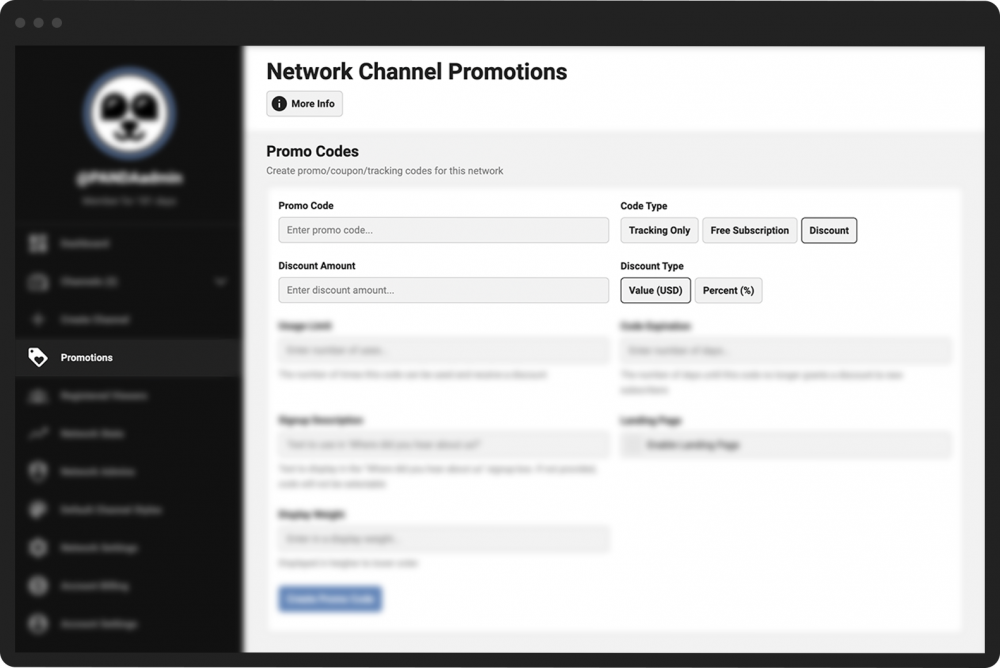
Your new code, along with any other codes you created, will appear in a box below the Create Promo Code button. The box will also display the type of code/discount, how many days until it expires, and how many times it has been used, if applicable.

To delete a promo code, click the garbage can icon.
Note: You cannot edit a code after you’ve created it. If you want to change the details of the code (such as the expiration date), delete the code and re-create it using the same name and the new details.