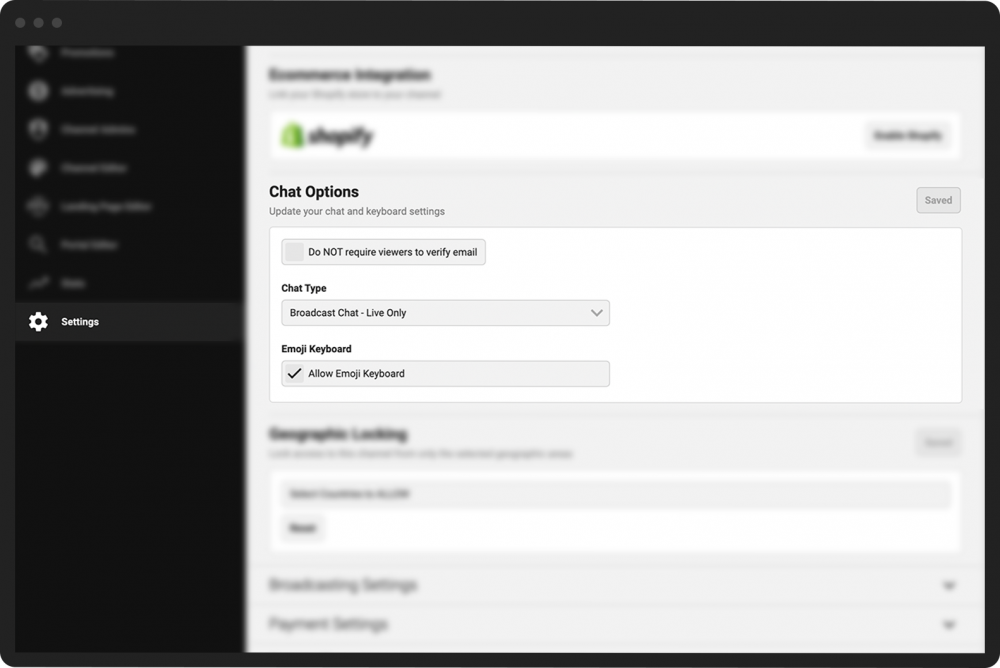
Adjust live chat options
During PANDA broadcasts, you viewers can engage and chat with other viewers in the Live Chat engagement panel. You can determine when the chat capability will be available (e.g., only during live broadcasts, or all the time) as well as what is required to participate.
To set your channel's chat options:
- 1
In the Channel Dashboard, click Settings at the bottom of the the far-left menu.
- 2
Click the General Settings tab.
- 3
Scroll down to the Chat Options section.
- 4
Check the Do NOT require viewers to verify email box if you want to allow users to join the chat quickly without having to verify their email address. Checking the box will speed up the process and encourage users to engage in the chat, though at the potential cost of security.
- 5
Select the type of chat associated with the broadcast. There are three options:
Broadcast Chat - Live Only means the chat will only be open during the initial, live stream of your broadcast.
Broadcast - Open Chat will allow the chat to continue on specific broadcasts even after the initial airing.
Channel Chat - Always Open will keep chat open for all broadcasts on your channel after their initial airing.
- 6
Check or uncheck the ** Allow Emoji Keyboard** box to allow or restrict the presence of emojis in chat.
- 7
Click the green Save button to the right of the Chat Options heading.