Connect an Enchant support account
Your PANDA network can connect to an Enchant account to provide FAQs and live chat customer support as desired. The Enchant messenger can be displayed on your channel portals, landing pages, and broadcasts as desired.
- 1
Login to your PANDA dashboard.
- 2
Click Network Settings from the far-left menu.
- 3
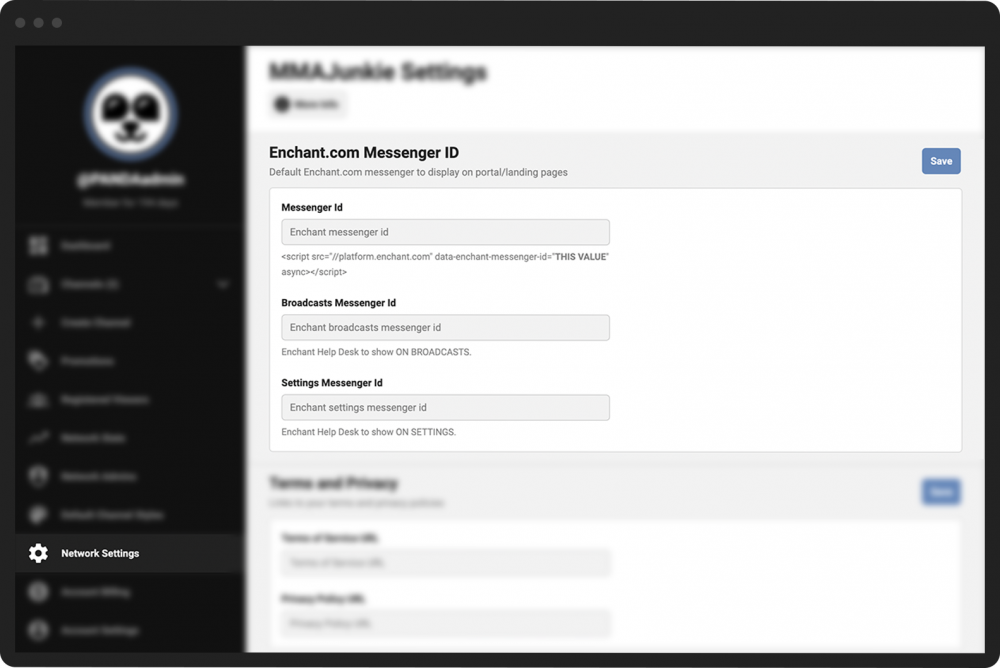
In the Enchant.com Messenger ID section, populate the desired fields:
Messenger ID–Enter the Enchant ID that will be the default for all pages.
Broadcasts Messenger ID–Enter an ID for the help desk to show on broadcasts.
Settings Messenger ID–Enter an ID for the help desk to show on your Settings page.
- 4
Click the green Save button to the right of the Enchant.com Messenger ID heading.
- 1
From your Channel Dashboard, click Settings at the bottom of the far-left menu.
- 2
Click the General Settings menu.
- 3
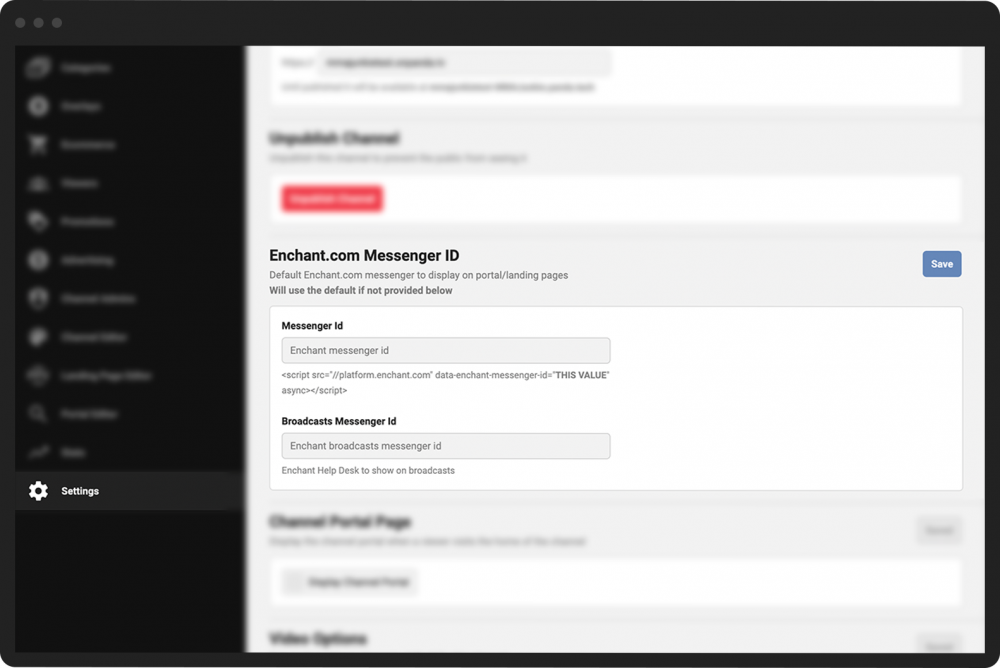
Scroll to the Enchant.com Messenger ID section.
- 4
Enter your Enchant messenger ID in the provided field. (This will override the default Messenger ID added in Network Settings above.)
- 5
Enter the same or a different messenger ID in the Broadcasts Messenger ID field for the help desk you want to display during broadcasts.
- 6
Click the green Save button to the right of the Enchant.com Messenger ID heading.
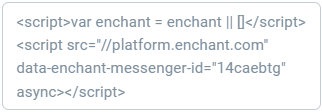
Once you’ve created your account at www.enchant.com and set up your Enchant messenger, you can find your ID in your messenger widget embed code on your Enchant dashboard. The messenger ID is an 8-character code located within the embed code:
<script src="//platform.enchant.com" data-enchant-messenger-id="THIS VALUE" async></script>
For instance, in the example below, the Messenger ID is “14caebtg”.