Enable in-chat ads
In-chat ads can be added throughout any live broadcast with an active chat panel. Ads populate as text messages within the chat interface.

To enable in-chat advertisements:
- 1
From your Channel Dashboard, click Advertising in the left-hand menu.
- 2
Click the Configure In-Chat Ads button.
- 3
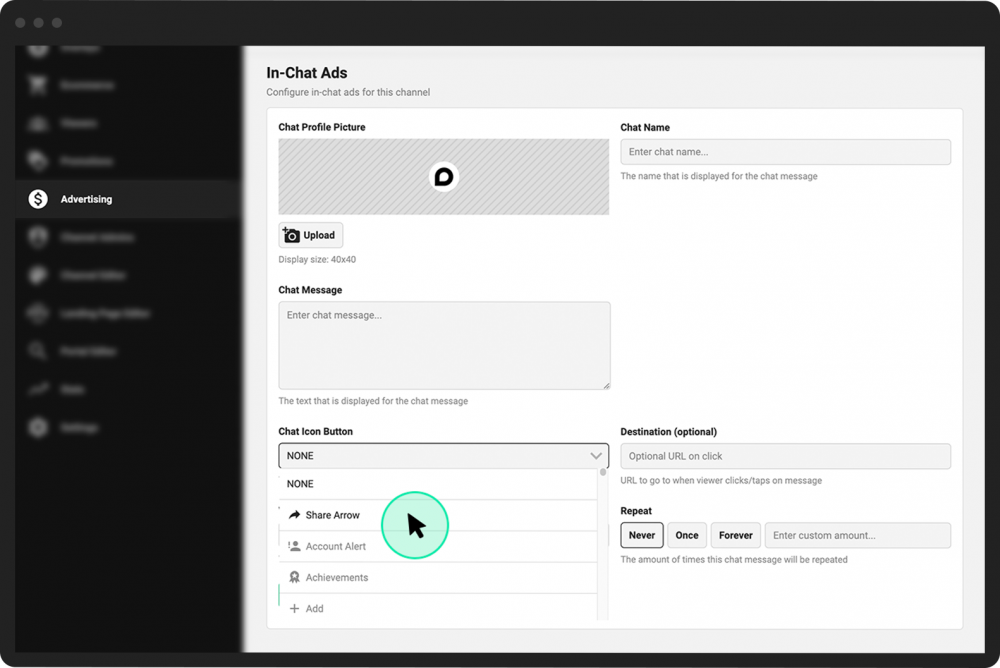
A new page will open where you can configure a mock user profile to simulate an individual who posts the ad. Under Chat Profile Picture, click Upload to select an image to associate with the user.
- 4
In the Chat Name field, type in the label or name the ad will be posted under in the live chat.
- 5
In the Chat Message field, enter the text of the ad you wish to display in the live chat.
- 6
From the Chat Icon Button pulldown menu, select an icon that will appear before your in-chat ad (to help it stand out in the rest of the chat), if desired.
- 7
To turn the chat message into a link, type the URL in the Destination field.
- 8
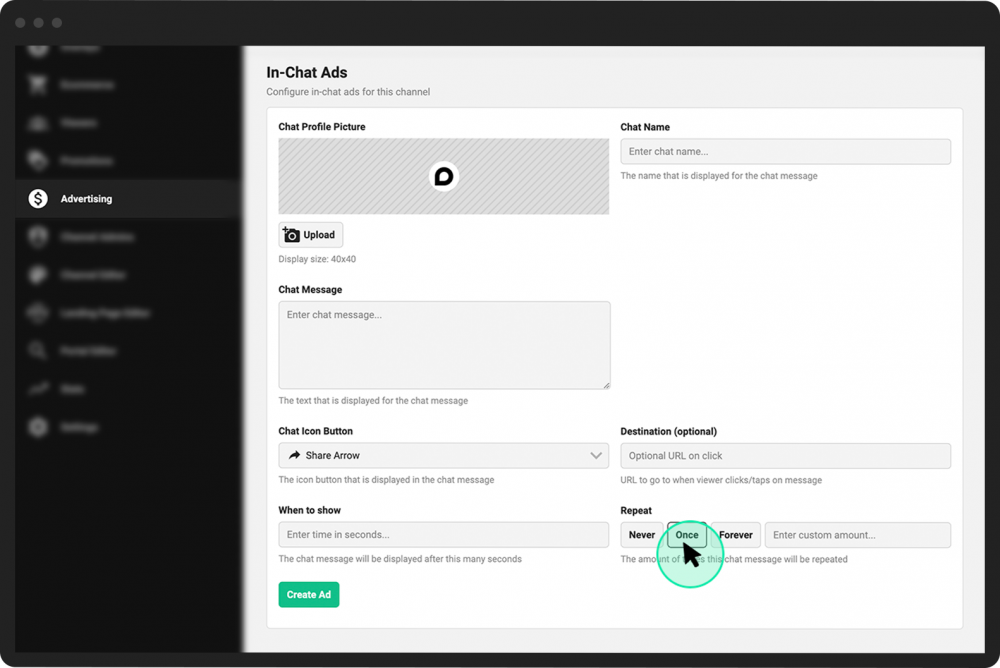
Enter a time (in seconds) in the When to Show field to auto-post your ad at a specific time during your broadcast. The chat ad will appear after the number of seconds you enter in this field.
- 9
Control the number of times the ad will be shown during the broadcast with the Repeat button options.
- 10
Click the green Create Ad button.